
Under Training plans → New plan you create a programme to assign to clients. You can also do this in the coach app, via the button in the middle of the bar.
Start empty or with AI. Start empty and add the exercises yourself. Or enter the goal, experience, number of days per week, equipment and any injuries, and get an outline. The equipment can be a fully equipped gym, barbells and a rack, only dumbbells or only bodyweight. An AI suggestion is a suggestion, not a plan: it’s only saved when you press save, and you refine it in the builder first.
In the coach app, from your client. With a client, under Set up training plan, is the Create plan with AI button. Choose a single plan or a training plan for the week, and for each workout enter which muscle groups, how long, how many exercises and which reps, optionally with an emphasis (focus on glutes). Add which exercises must definitely be included and which mustn’t, any injuries, and whether there should be a warm-up beforehand and a cool-down or cardio afterwards. The AI makes an outline with sets, reps, RPE and tempo. Once you save it, you refine each plan in the builder: adjust RPE and tempo, add exercises, and change the order with the arrows. Then you schedule them for your client, with the plans already ticked. Your answers are remembered, so for the next client you only change what’s different; injuries and exercises per client aren’t.
 (opens at full size in a new tab)
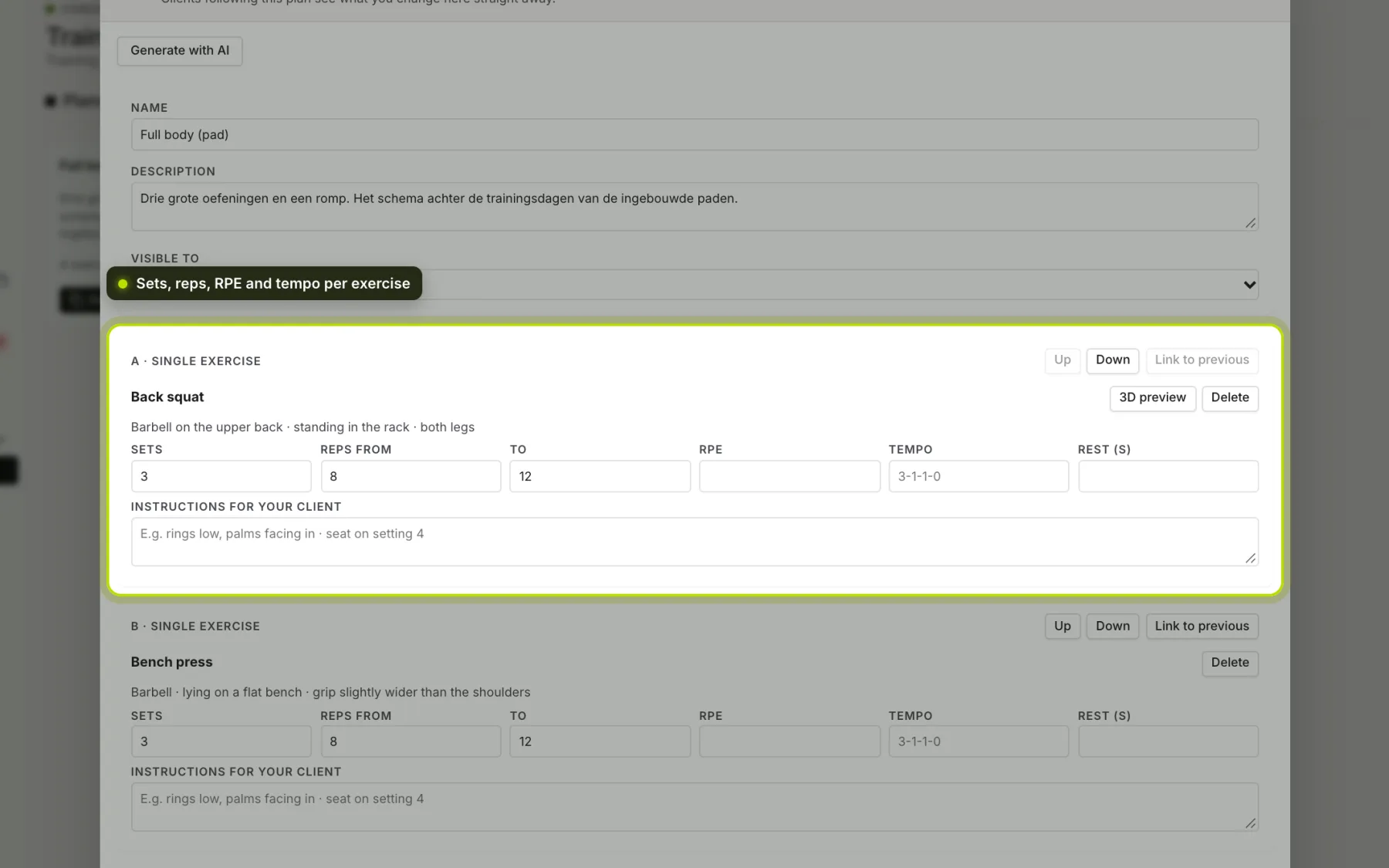
Blocks and exercises. Search for exercises by name or muscle group and set the sets, reps and optionally weight, RPE or tempo for each exercise. If you leave the weight empty, your client decides what suits them; the app remembers what they did last time.
Instructions for your client. Below each exercise is Instructions for your client: "rings low, palms facing in", "seat on setting 4". Your client sees it on the set card, at the top, marked From your coach. If you enter a tempo, they see it in words with the time under tension; without a tempo the app shows a guide tempo and mentions that it doesn’t come from you.
Variants. Many exercises come in several forms, with the difference in brackets: Dip (rings), Dip (chest, parallel bars), Leg press (45° sled). Below each exercise is which equipment, which position and which direction; you can search on those too.
Supersets. With Link to previous you turn two or more exercises into a round your client does back to back. Under Rest after the round you set how many seconds they rest afterwards.
Explanation. Write down where the emphasis lies and what your client should pay attention to. They read it in the app.
Visible to. A plan is yours, or your whole business’s. If you choose Only me, your colleagues don’t see it in their list.
Editing. Clients following this plan see your changes straight away. What they’ve already logged stays as it was.
Archiving. Archive a plan you no longer use. It disappears from your list; clients following it just carry on.
See also Scheduling a plan for your client and Supersets, RPE and tempo.