
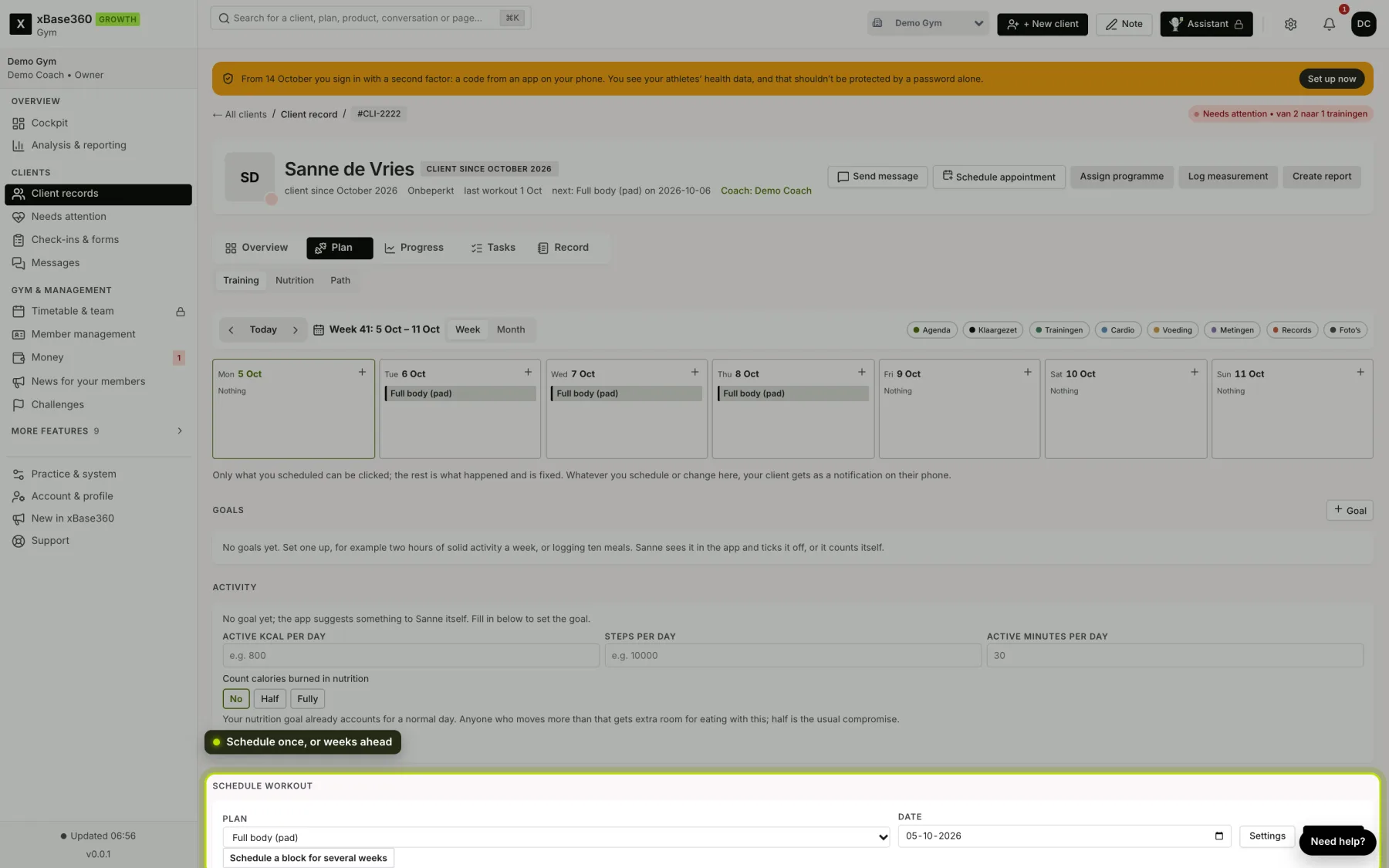
You assign a plan you’ve made in your client’s record, under Plan → Training. In the coach app you do the same from the client.
 (opens at full size in a new tab)
Scheduling once. Choose the plan and the day. Under Settings you can add a note for your client, such as why this plan and what to pay attention to, have a reminder sent on the day itself, and make the workout optional: skipping it then doesn’t count as missed. Those settings apply to this one time.
A block of several weeks. With Schedule block you set up weeks ahead in one go. Choose the plans in the order they should run: three plans on three days means the first on day 1, the second on day 2 and the third on day 3. Choose the days, optionally a fixed time per day, and how many weeks. If a block was already on those days, nothing gets duplicated.
What your client sees. The workouts are in their calendar and on their home screen. They get a notification as soon as something is ready.
Clearing a period. If a block isn’t going as planned, clear a period again. Workouts they’ve already done stay.
What you see in return. Under Progress you see per week how many workouts they completed compared with what was scheduled, and how many they skipped.