
The Cockpit is the dashboard’s home screen. It’s not a collection of charts, but the answer to the question: what do I need to deal with today?
 (opens at full size in a new tab)
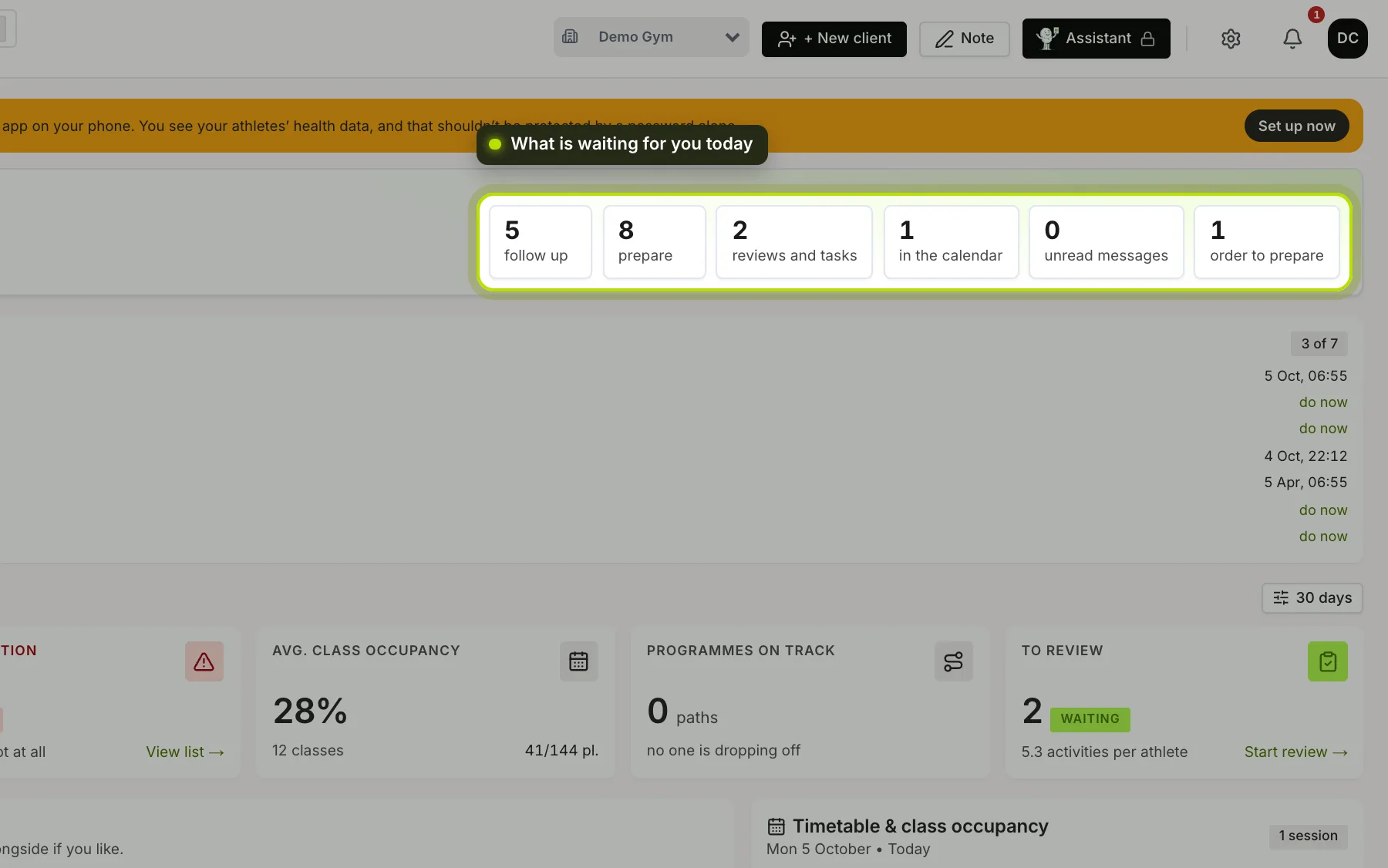
What’s waiting for you today. Next to your greeting is how many things are waiting for you today, broken down:
- follow up: members who are dropping off or never started;
- prepare: clients with no workout in the next seven days;
- reviews and tasks: completed check-ins and your own tasks that are (almost) due;
- in the calendar: your appointments and today’s classes;
- unread messages: takes you to Messages;
- order to prepare: orders from your shop that need to be got ready. Only if you have a shop, or if something is waiting.
 (opens at full size in a new tab)
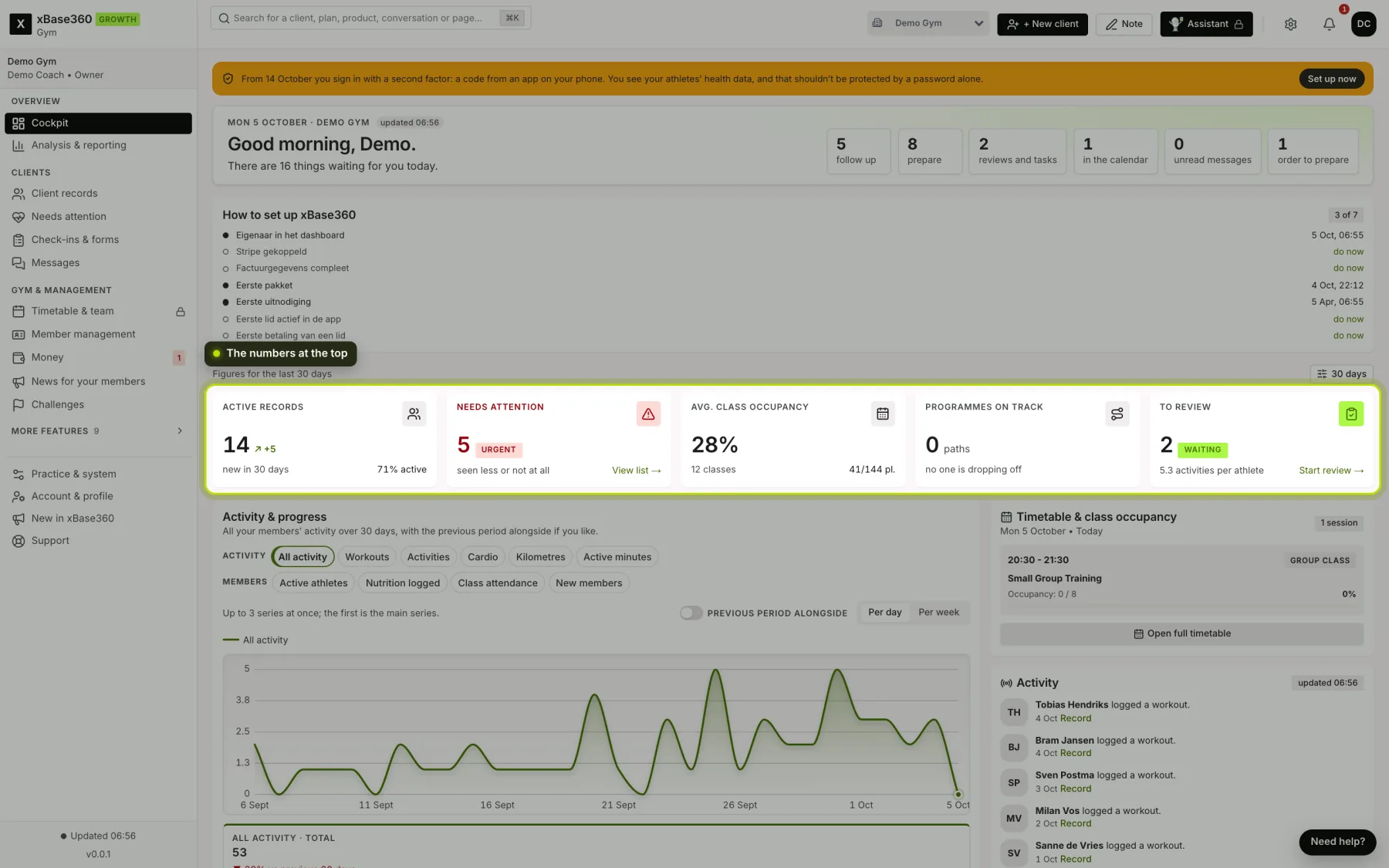
The figures. For the period you choose on the right, thirty days by default:
- Active records: how many clients you have, how many are new, and what share is active.
- Needs attention: members who come less or no longer come and whom you haven’t followed up yet. View list opens Needs attention.
- Avg. class occupancy: how full your classes were, with the number of classes and places.
- Programmes on track: how many clients are following their path, and how many are slipping.
- To review: completed check-ins still waiting for you. Start review opens them one by one; see Reviewing completed check-ins.
Activity and retention. A chart of all your members’ movement, where you choose what you see (workouts, activities, cardio, active minutes, or members who logged food or attended a class). Below it, which day of the week sees the most movement, the mix of movement, and how your members are doing, from active to dormant.
Urgency & retention. Who is dropping off, who has no visits left and who is neglecting their path. With Open record or the message icon you get going straight away; via the three dots you mark someone as handled or snooze them.
The work board at the bottom. Four columns: Follow up, Prepare (with Schedule per client), Reviews and tasks and Today in the calendar.
On the right. Today’s timetable and class occupancy, and what your clients logged in the last few days.
When the figures were made. At the top is the time the view was built. Refresh the page for the latest position.