
When your clients fill in their check-ins, you want to read them and let them know you’ve seen them. That’s what the review window is for.
Where. Under Check-ins & forms, To review tab. Every completed check-in you haven’t yet marked as seen is there. On the cockpit, Start review also takes you there.
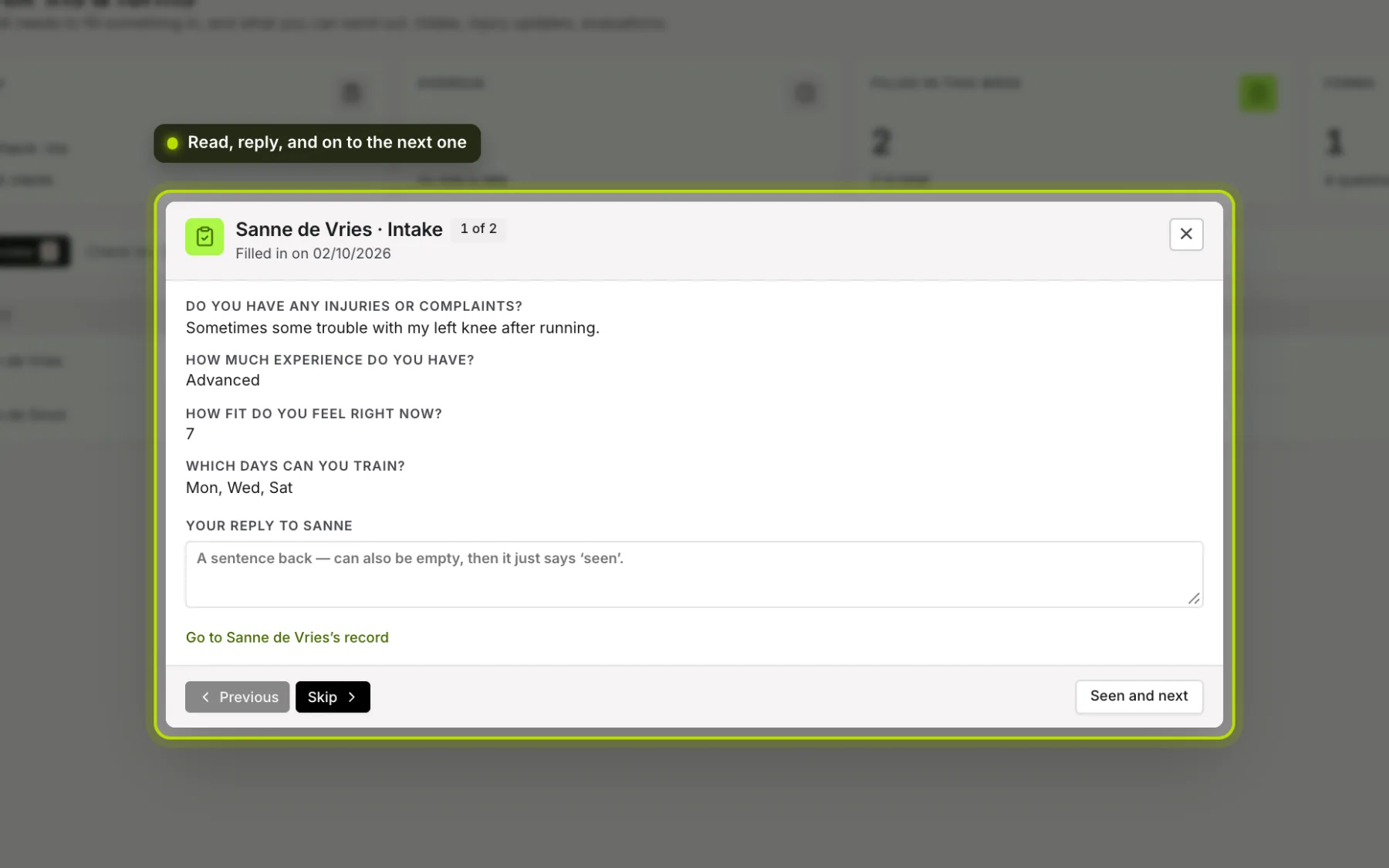
Opening. Click View on a row. The window shows the client, the form, when it was filled in, and 1 of 5: how many are still in the queue.
 (opens at full size in a new tab)
Reading. Each question is shown with the answer. If a question is no longer in the form, you see the answer as it was given at the time.
Replying. Under Your reply to you write a sentence back. Your client sees it in the app. Leaving it empty is fine; then they only see that you’ve read it.
Seen and next. Marks the check-in as seen, sends your client a notification (Your coach has read your check-in) and opens the next one. On the last one, the button is called Seen and closes the window.
Skipping and going back. Skip moves on without marking it as seen. Previous goes back.
Keyboard shortcuts. j is next without marking, k is previous. They do nothing while you’re typing.
Closing halfway. If you’ve already written something, the window asks whether your changes can be discarded.
In the record. With a client under Check-ins, you can also mark a single check-in as seen, with Seen + reply. The Go to …’s record link takes you from the window to the client.
See also Check-ins and forms.