
Assistant is an AI that works alongside you in the dashboard and in the coach app. You say or type what you want to do, and it does the work: opening a record, filling in a window, preparing a message, answering a question. It only saves and sends when you say so or tap.
 (opens at full size in a new tab)
In the dashboard. At the top right is the Assistant button, with the mascot. You can also open it with ⌘J (Mac) or Ctrl+J (Windows). The panel sits at the bottom right. Hold down the microphone button while you talk, or hold the space bar when you’re not in a text field. Let go and it gets to work. You can always type, in the field at the bottom.
In the coach app. At the bottom right, above the bar, is a round button with the mascot. Tap it, hold down the microphone button and talk, or type.
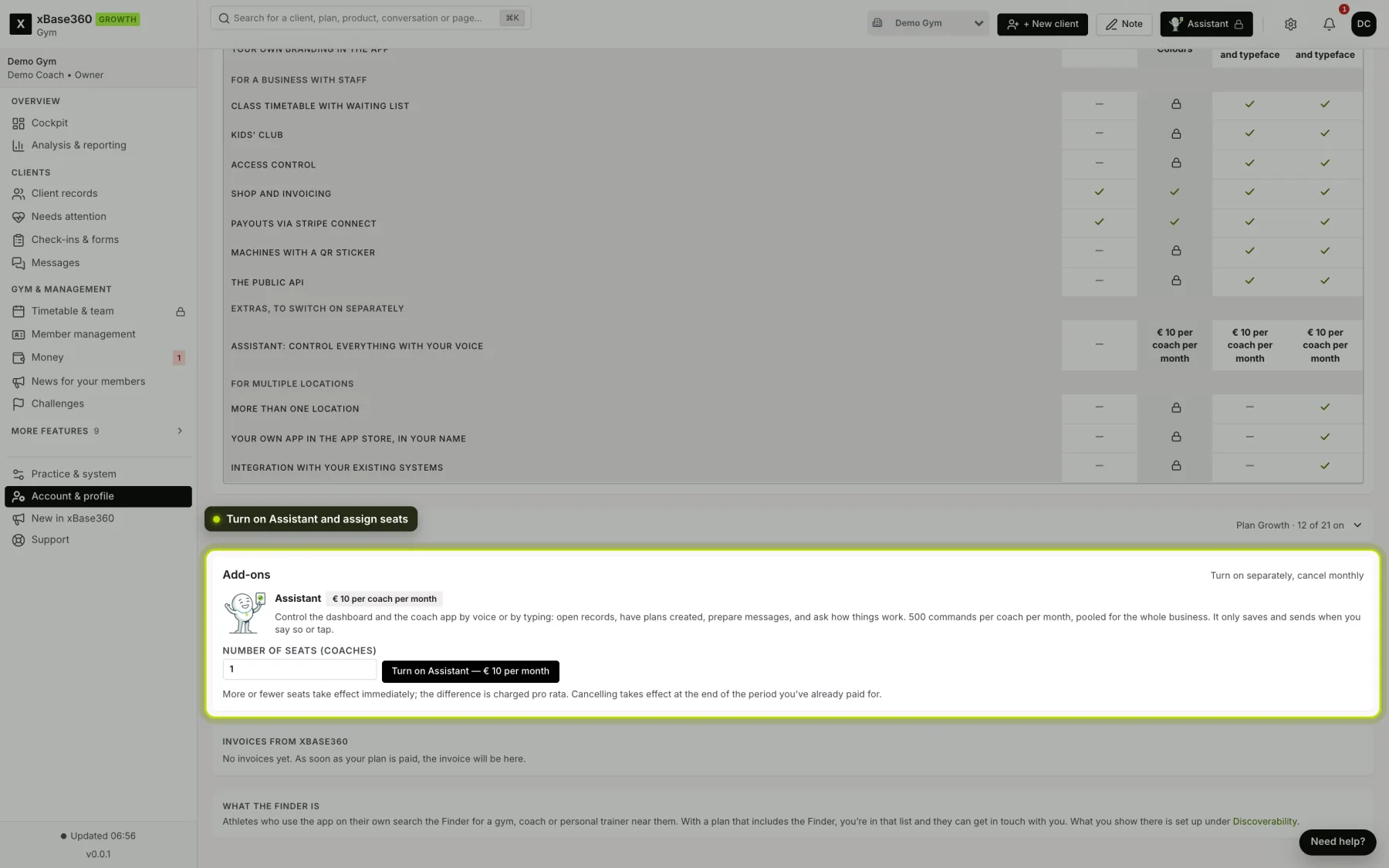
A padlock on the button. Then you can’t use Assistant yet: it isn’t in your business’s plan (it’s available from Growth), your business hasn’t turned it on yet, or you haven’t been given a seat yet. Open it and you’ll see which of the three it is, and what you can do.
You see it happen. Assistant opens the screen and fills in the window you would use yourself. So that window’s checks simply apply: a required field stays required, and what you’re not allowed to do, it can’t do either.
You decide. For a button that saves, sends, invites or schedules, it only presses it if you literally asked for that (“save it”, “go ahead and send it”). Otherwise a question appears in the panel with Yes and No. A message or task for a client is first prepared as a card, with Send and Cancel; you can also say “yes” or “no”.
What it says back. Its answer is on the screen. The voice is off by default; the speaker in the panel header (in the app: Voice off) turns it on, and then it speaks the first sentence of its answer. Your choice is saved in your browser and on your phone.
Follow-up questions. It remembers the conversation. “Open Bram’s record” followed by “how’s he doing?” works, just like “schedule it and send it to her”.
See also What you can ask Assistant and Turning on Assistant and allocating seats.