
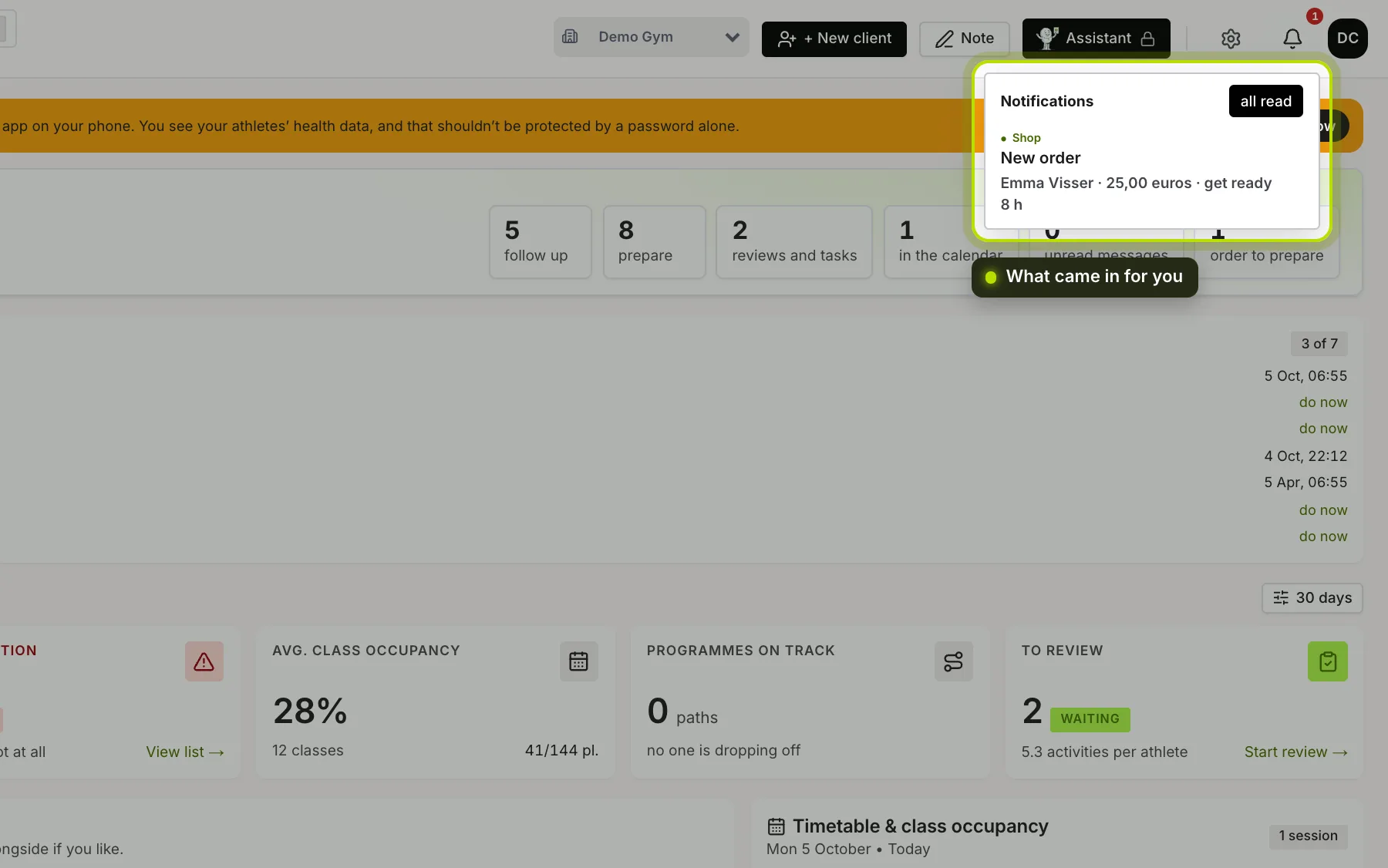
At the top right of the dashboard there’s a bell. That’s where the things you need to act on come in. A number on the bell tells you how many you haven’t read yet.
 (opens at full size in a new tab)
What you see there. Above each notification is its type, for example:
- Form: a client filled in a check-in or form.
- New client: someone you invited chose a password and is in.
- Personal record: a client set a record.
- Message, Shop, Workout done, Report, Timetable and Sign-up.
- Member news: a colleague posted news for your members.
- xBase360: news about the platform itself.
Clicking. A click marks the notification as read and takes you to what it’s about. A completed form and a record open the client’s record. A new client opens your Client records. Platform news opens New in xBase360. All read empties the bell in one go.
Choosing for yourself. Under Account & profile → Notifications you turn each type on or off, depending on what you want to hear about, such as forms, new arrivals, records, consultations, the weekly message, messages, completed plans, orders, news in the app, the timetable and sign-ups.
One choice for two places. What you choose here applies to the bell in the dashboard and to the notifications on your phone in the coach app. So you don’t have to set it twice.
Your phone’s permission. That’s separate. If you’ve turned off notifications for the app on your phone, nothing comes in, whatever you turn on here.